Picture Lab A5: Modifying a Picture
From CS Awesome 2CC BY-NC-SA 4.0Original page
Java1 class period5 exercises21 graded tests
Files
Picture Lab A5: Modifying a Picture
Each coding exercise has its own folder. Open its .java file and press Run to try it. Run Tests checks every graded exercise in this lesson at once.
Even though digital pictures have millions of pixels, modern computers are so fast that they can process all of them quickly. You will write methods in the Picture class that modify digital pictures like the ones below.
The data file beach.jpg is in each exercise folder that uses it.
The data file metalLion.jpg is in each exercise folder that uses it.
The data file water.jpg is in each exercise folder that uses it.
The data file kitten.jpg is in each exercise folder that uses it.
The data file puppies.jpg is in each exercise folder that uses it.
The data file blueMotorcycle.jpg is in each exercise folder that uses it.
The data file student.jpg is in each exercise folder that uses it.
You can loop through all the Pixel objects in the two-dimensional array to modify the picture. You can get and set the red, green, and/or blue value for a Pixel object. You can also get and/or set the Color value for a Pixel object. For example,
Picture pict = new Picture("beach.jpg");
Pixel[][] pixels = pict.getPixels2D();
Pixel p = pixels[0][0]; // get the first pixel
int blue = p.getBlue(); // get its blue value
System.out.println("Pixel (0,0) has a blue value of " + blue );
p.setBlue(255);  // set its blue value to 255
pict.show();
Image Modification Exercises
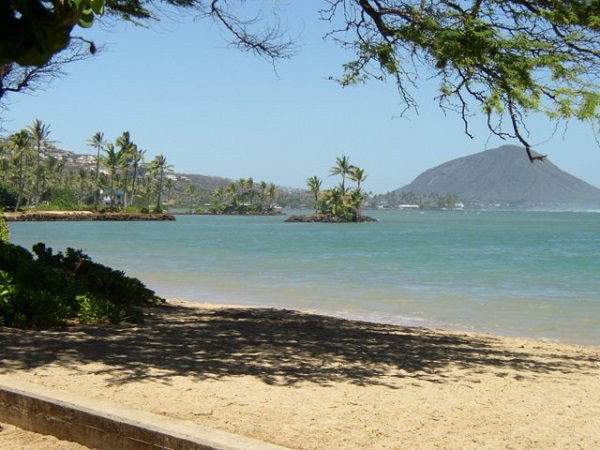
What do you think you will see if you modify the beach picture to set all the blue values to zero? Do you think you will still see a beach? Run the main method in the Picture class in the exercise below. The body of the main method will create a Picture object named beach from the “beach.jpg” file and call the method that sets the blue values at all pixels to zero. The following code is the main method from the Picture class.
public static void main(String[] args)
{
  Picture pict = new Picture("beach.jpg");
  pict.show(); // show the before picture
  pict.zeroBlue();
  pict.show(); // show the after picture
}
The method zeroBlue in the Picture class gets a two-dimensional array of Pixel objects from the current picture (the picture the method was called on). It then declares a variable that will refer to a Pixel object named pixelObj. It uses a nested for-each loop to loop through all the pixels in the picture. Inside the body of the nested for-each loop it sets the blue value for the current pixel to zero. Note that you cannot change the elements of an array when you use a for-each loop. If, however, the array elements are references to objects that have methods that allow changes, as they are here, you can change the internal state of objects referenced in the array.
The following code is the zeroBlue method in the Picture class.
public void zeroBlue()
{
     Pixel[][] pixels = this.getPixels2D();
     for (Pixel[] rowArray : pixels)
     {
          for (Pixel p : rowArray)
          {
             p.setBlue(0);
          }
     }
}
Another option is to use for loops with indices to visit each pixel in the picture:
public void zeroBlue()
{
     Pixel[][] pixels = this.getPixels2D();
     for (int row = 0; row < pixels.length; row++)
     {
          for (int col = 0 ; col < pixels[0].length; col++)
          {
             Pixel p = pixels[row][col];
             p.setBlue(0);
          }
     }
}
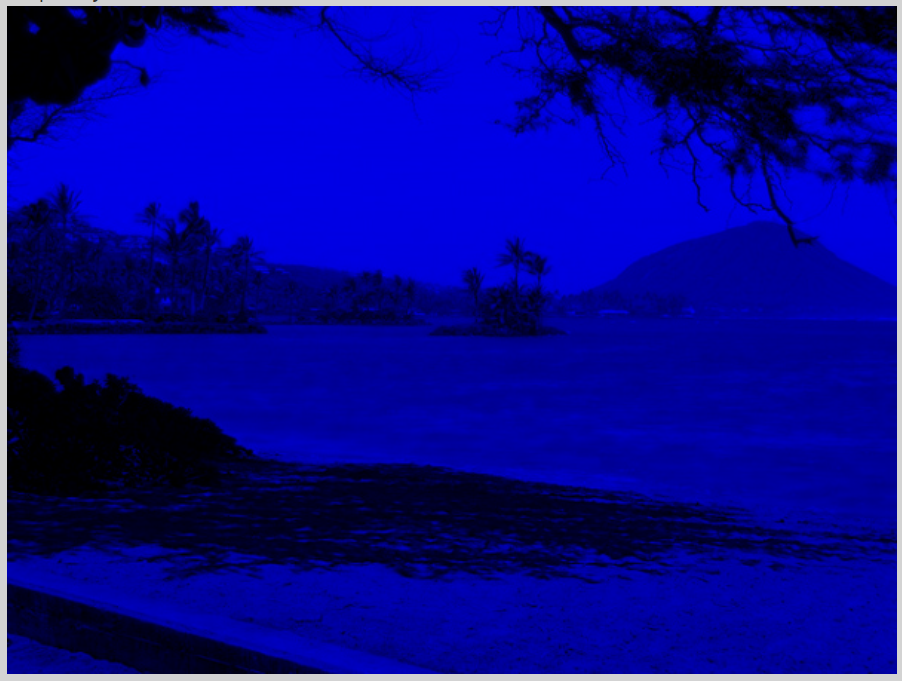
- You may have already done this exercise in a coding challenge for 2D arrays. Using the
zeroBluemethod as a starting point, write the methodkeepOnlyBluethat will keep only the blue values, that is, it will set the red and green values to zero. Be sure to call the new test method in themainmethod.
You can use beach.jpg or one of the other images seen at the bottom of this lesson in the exercises below which are autograded.
Exercise 1
Picture Lab keepOnlyBlue: Using zeroBlue() as a guide, write a method called keepOnlyBlue() that keeps only the blue values by setting the red and green values to zero. Change the method call in main from zeroBlue to keepOnlyBlue to test it. Try one of the other images below like metalLion.jpg, water.jpg, kitten.jpg, puppies.jpg, blueMotorcycle.jpg, or student.jpg.
Open the
01-picture-lab-A5-keepOnlyBluefolder and editPicture.java. Press Run to try it; Run Tests checks it (5 tests). Its tests check your code, not what it prints: “keepOnlyBlue() method”, “Call to keepOnlyBlue() in main”, “keepOnlyBlue() setting green pixels to the number 0”, “keepOnlyBlue() setting red pixels to the number 0”, “Checking that keepOnlyBlue() contains 2 for loops”. It draws pictures: Run saves the drawing as an image in its folder, and Run Tests checks the code without the drawing.
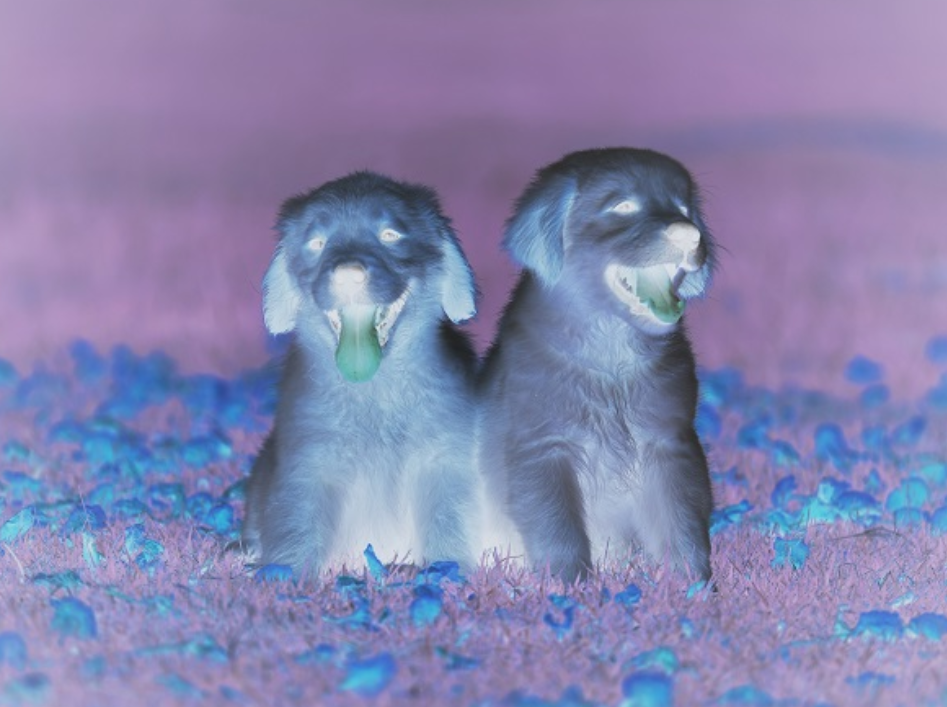
- Write the negate method to negate all the pixels in a picture. To negate a picture, set the red value to 255 minus the current red value (use the pixel’s
getRedmethod), the green value to 255 minus the current green value and the blue value to 255 minus the current blue value. Be sure to call the new test method in the main method.
Exercise 2
Picture Lab negate: Write a method called negate() that negates all the pixels in a picture by setting the red value to 255 minus the current red value (use the pixel’s getRed() method), the green value to 255 minus the current green value and the blue value to 255 minus the current blue value. Try one of the other images below like beach.jpg, metalLion.jpg, water.jpg, kitten.jpg, puppies.jpg, blueMotorcycle.jpg, or student.jpg.
Open the
02-picture-lab-A5-negatefolder and editPicture.java. Press Run to try it; Run Tests checks it (4 tests). Its tests check your code, not what it prints: “negate() method”, “negate() subtracts from 255”, “negate() uses get methods”, “Checking that negate() contains 2 for loops”. It draws pictures: Run saves the drawing as an image in its folder, and Run Tests checks the code without the drawing.
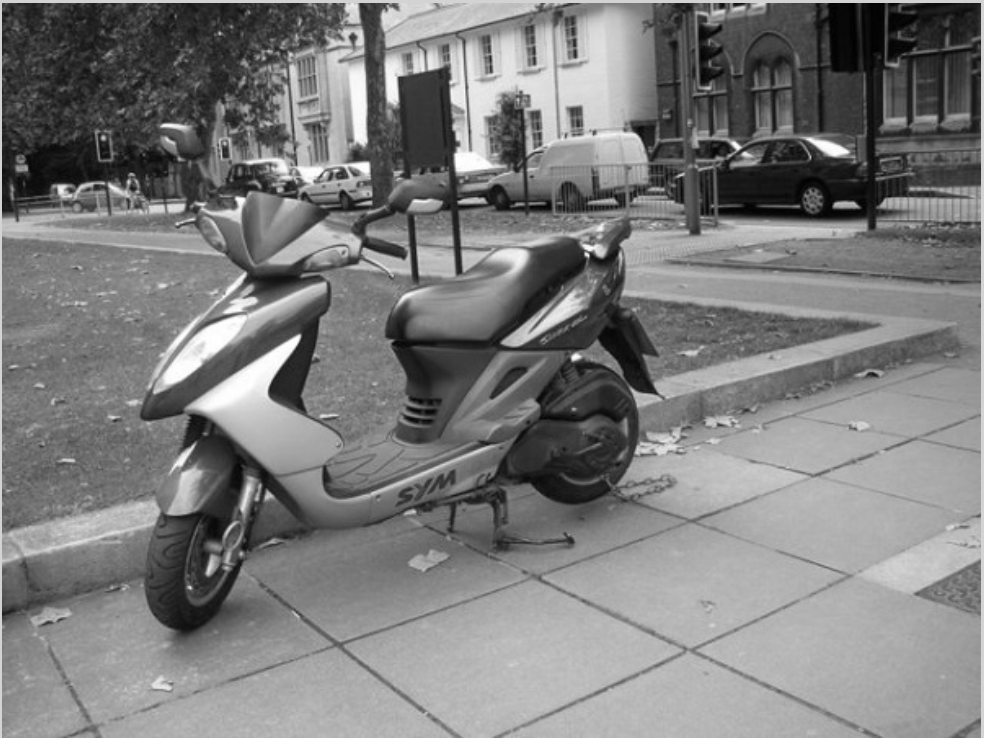
- Write the grayscale method to turn the picture into shades of gray. Set the red, green, and blue values to the average of the current red, green, and blue values (add all three values and divide by 3). Be sure to call the new test method in the main method.
Exercise 3
Picture Lab Grayscale: Write a method called grayscale to turn the picture into shades of gray. Set the red, green, and blue values to the average of the current red, green, and blue values (add all three values and divide by 3). Try another image file from beach.jpg, metalLion.jpg, water.jpg, kitten.jpg, puppies.jpg, blueMotorcycle.jpg, student.jpg.
Open the
03-picture-lab-A5-gray-scalefolder and editPicture.java. Press Run to try it; Run Tests checks it (4 tests). Its tests check your code, not what it prints: “grayscale() method”, “grayscale() uses get methods”, “grayscale() divides by 3 to average the values”, “Checking that grayscale() contains 2 for loops”. It draws pictures: Run saves the drawing as an image in its folder, and Run Tests checks the code without the drawing.
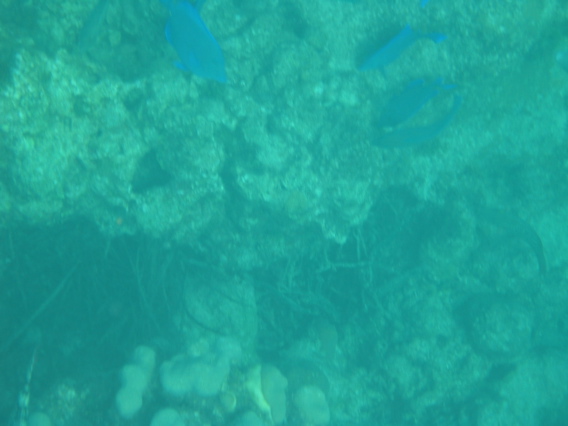
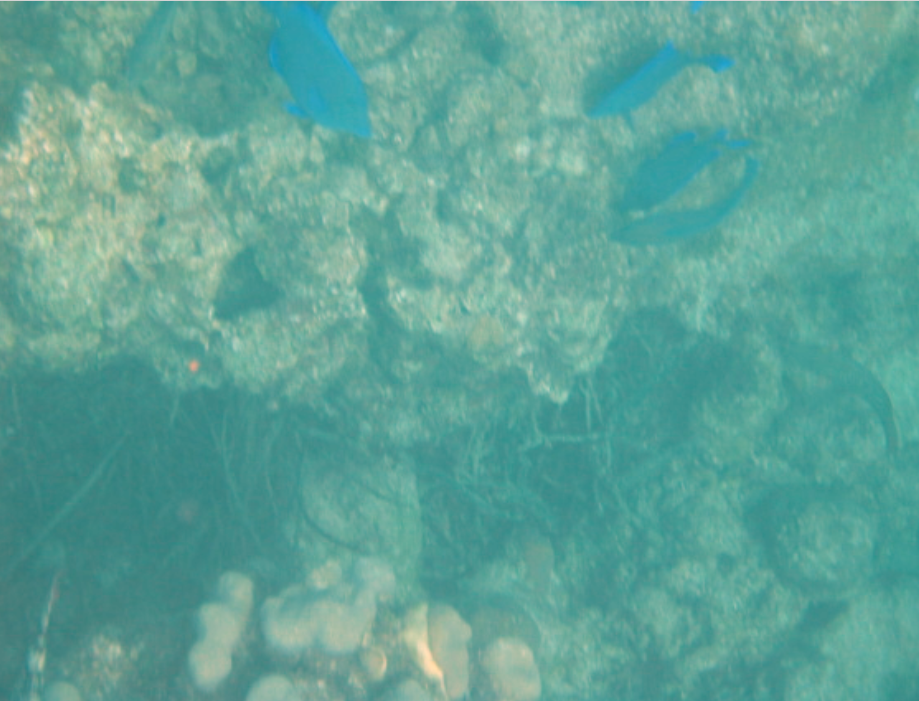
- Challenge — Explore the water.jpg picture. Write a method fixUnderwater() to modify the pixel colors to make the fish easier to see. There are many ways to do this, but you could try increasing one of the colors by a certain factor. Here are some more complex algorithms for increasing the brightness and contrast of images https://web.archive.org/web/20240911001714/https://ie.nitk.ac.in/blog/2020/01/19/algorithms-for-adjusting-brightness-and-contrast-of-an-image/.
Exercise 4
Picture Lab fix-underwater: Write a method called fixUnderwater() to modify the pixel colors to make the fish easier to see. Try increasing one of the colors by a certain factor.
Open the
04-picture-lab-A5-fix-underwaterfolder and editPicture.java. Press Run to try it; Run Tests checks it (3 tests). Its tests check your code, not what it prints: “fixUnderwater() method”, “fixUnderwater() uses the setRed() method to increase red values”, “Checking that fixUnderwater() contains 2 for loops”. It draws pictures: Run saves the drawing as an image in its folder, and Run Tests checks the code without the drawing.
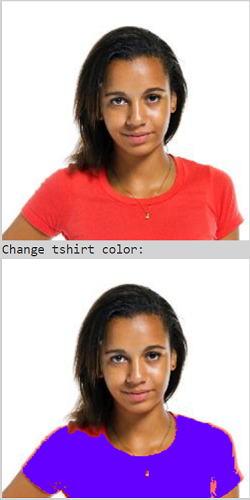
- Extra Challenge — This exercise is not in the original picture lab. Can you change just the t-shirt color in student.jpg? You will need to use an if statement inside the loops to look for the red t-shirt color and then change it. The red pixels probably have a high red value (for example greater than 200) and low green and blue values (for example less than 100). After changing the t-shirt color, try changing the background color or the hair color.
Try the following Color Chooser (also at https://www.cssscript.com/demo/rgb-color-picker-slider/) by moving the sliders to try to match the red color of the shirt and see what range and limits the RGB color values need to be for your if statement:
Open it on CS Awesome: https://runestone.academy/ns/books/published/csawesome2/pictureLabA5.html#image-modification-exercises
Exercise 5
Can you change just the t-shirt color in student.jpg? You will need to use an if statement inside the loops to look for the red t-shirt color and then change it. The red pixels probably have a high red value (for example greater than 200) and low green and blue values (for example less than 100). After changing the t-shirt color, try changing the background color or the hair color.
Open the
05-picture-lab-A5-tshirt-colorfolder and editPicture.java. Press Run to try it; Run Tests checks it (5 tests). Its tests check your code, not what it prints: “changeTshirt() method”, “changeTshirt uses if statement”, “changeTshirt() chacks if getRed() greater than a value”, “changeTshirt() uses setRed(0)”, “Checking that changeTshirt() contains 2 for loops”. It draws pictures: Run saves the drawing as an image in its folder, and Run Tests checks the code without the drawing.
For teachers
Picture Lab A5: Modifying a Picture
Students read CSAwesome2's “Picture Lab A5: Modifying a Picture” in CS Room and work through its 5 Java coding exercises.
- Time: 1 class period
- Tests: 21 in 5 graded exercises, set up for you when you import the lesson
Goals
- Practice for Unit 4: Data Collections.
Before class
- Import the lesson into your class from the Lessons page, or with New assignment → Use a lesson. It arrives as a draft with its tests already set up.
- Publish it.
- The original page is on CS Awesome: https://runestone.academy/ns/books/published/csawesome2/pictureLabA5.html
- CS Awesome's own teacher materials: the CS Awesome teacher site
In class
- Students read
README.md. - Students do exercises 01–05, each in its own folder, pressing Run to try their code.
- Run Tests checks every graded exercise at once; scores appear in the Gradebook. Grading uses your copy of the tests, so a student who edits theirs does not change the grade.
Exercises
| Folder | File | Grading | Tests |
|---|---|---|---|
01-picture-lab-A5-keepOnlyBlue | Picture.java | Checks code text only (draws pictures; graded without the drawing) | 5 |
02-picture-lab-A5-negate | Picture.java | Checks code text only (draws pictures; graded without the drawing) | 4 |
03-picture-lab-A5-gray-scale | Picture.java | Checks code text only (draws pictures; graded without the drawing) | 4 |
04-picture-lab-A5-fix-underwater | Picture.java | Checks code text only (draws pictures; graded without the drawing) | 3 |
05-picture-lab-A5-tshirt-color | Picture.java | Checks code text only (draws pictures; graded without the drawing) | 5 |
Teachers can download a reference solution after signing in.